Keyboard Shortcuts
If you have paired a Bluetooth keyboard with your iOS device, you can use the following keyboard shortcuts with OmniOutliner 2 for iOS. These are the same keyboard shortcuts you’ll find in OmniOutliner for Mac, so you should feel right at home.
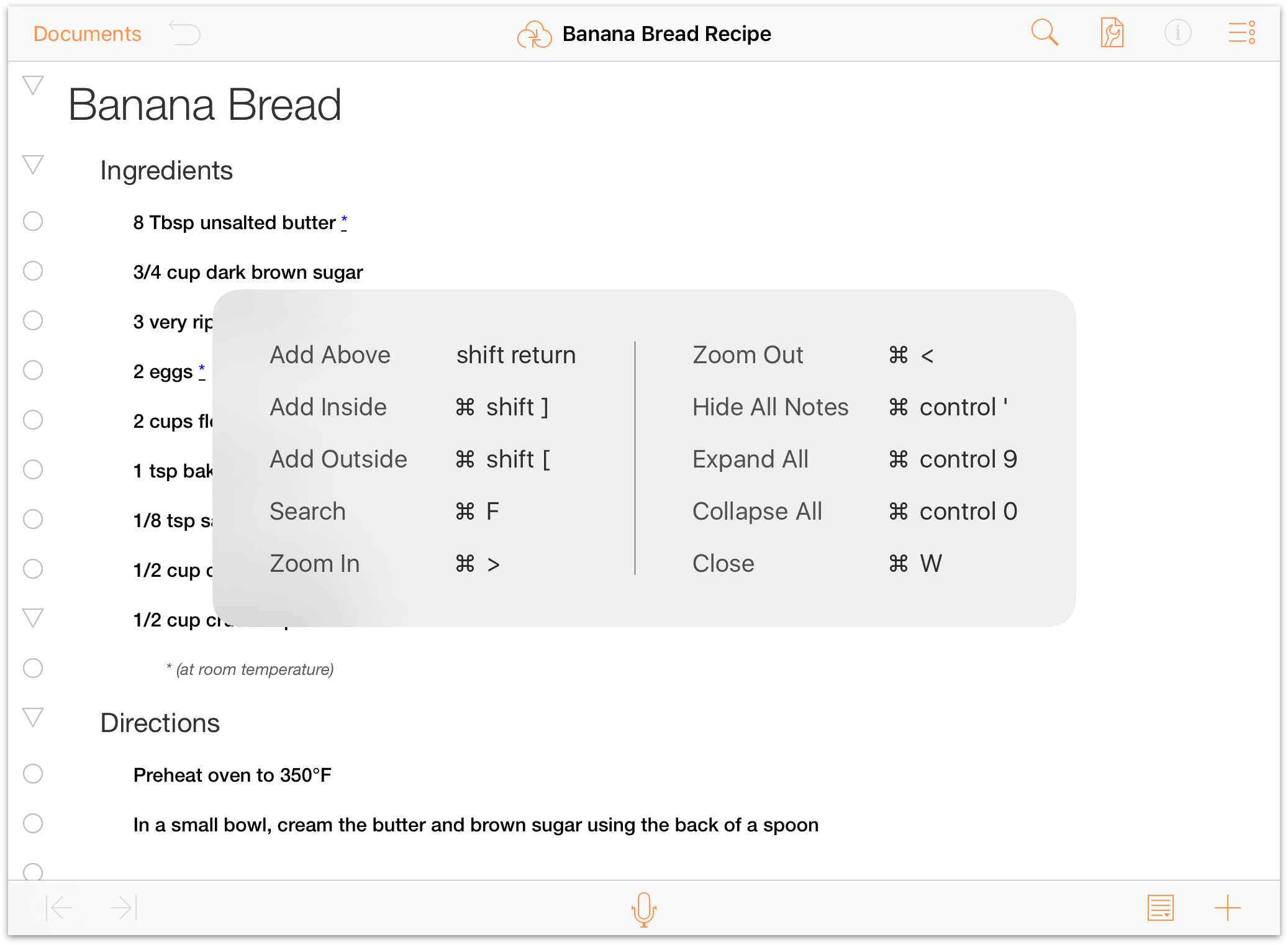
As an added bonus for iOS 9 users, you don’t have to worry about trying to memorize the keyboard shortcuts, because OmniOutliner presents them to you whenever you hold down the Command (⌘) key on your Bluetooth keyboard. The basic list of keyboard shortcuts is shown when you don’t have anything selected in your outline:
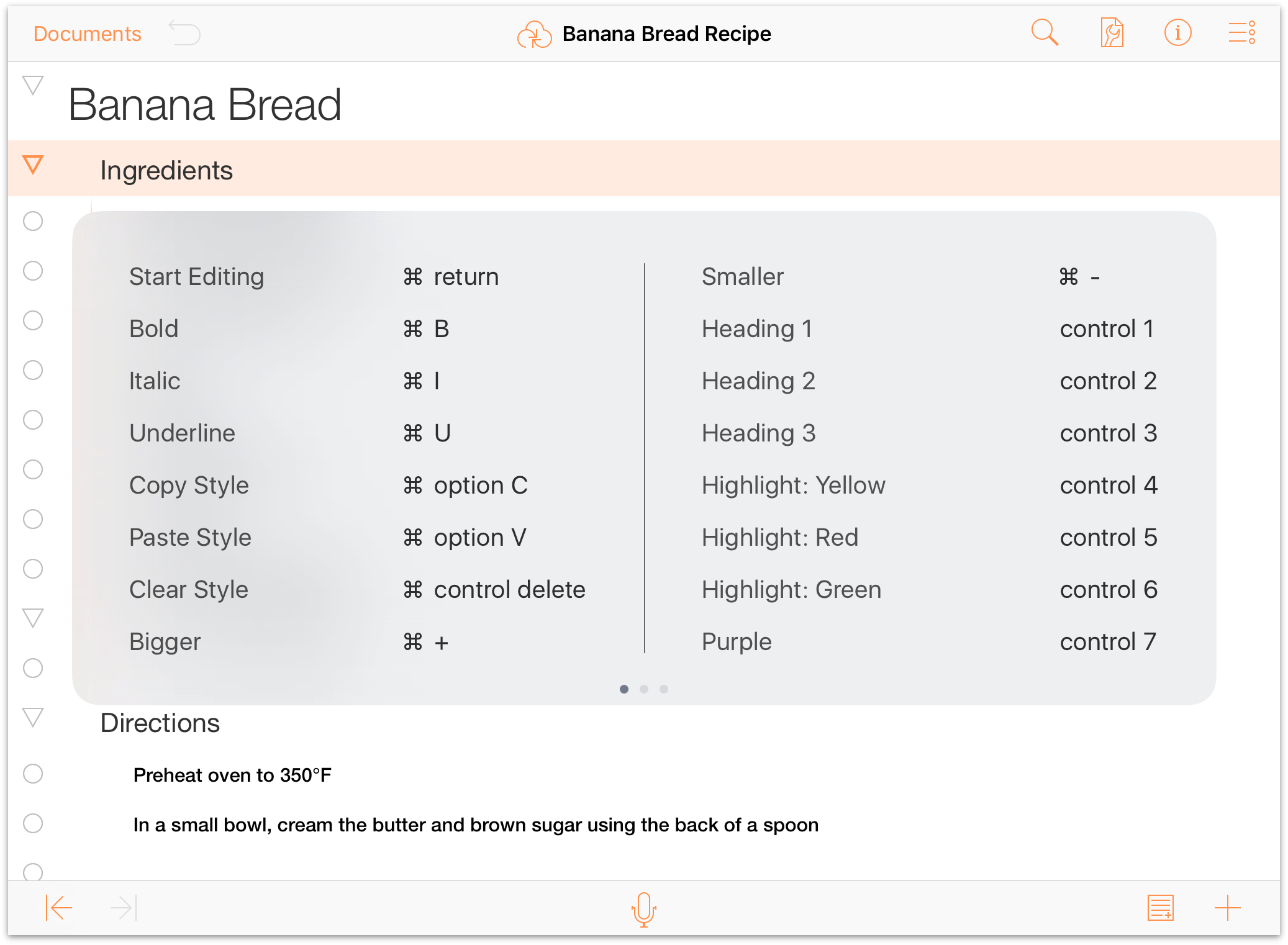
If you do have a row selected in your outline, the shortcut overlay offers multiple screens of shortcuts. With the Command (⌘) held down, you can swipe left or right through the overlay to locate the keyboard shortcut you’re looking for.
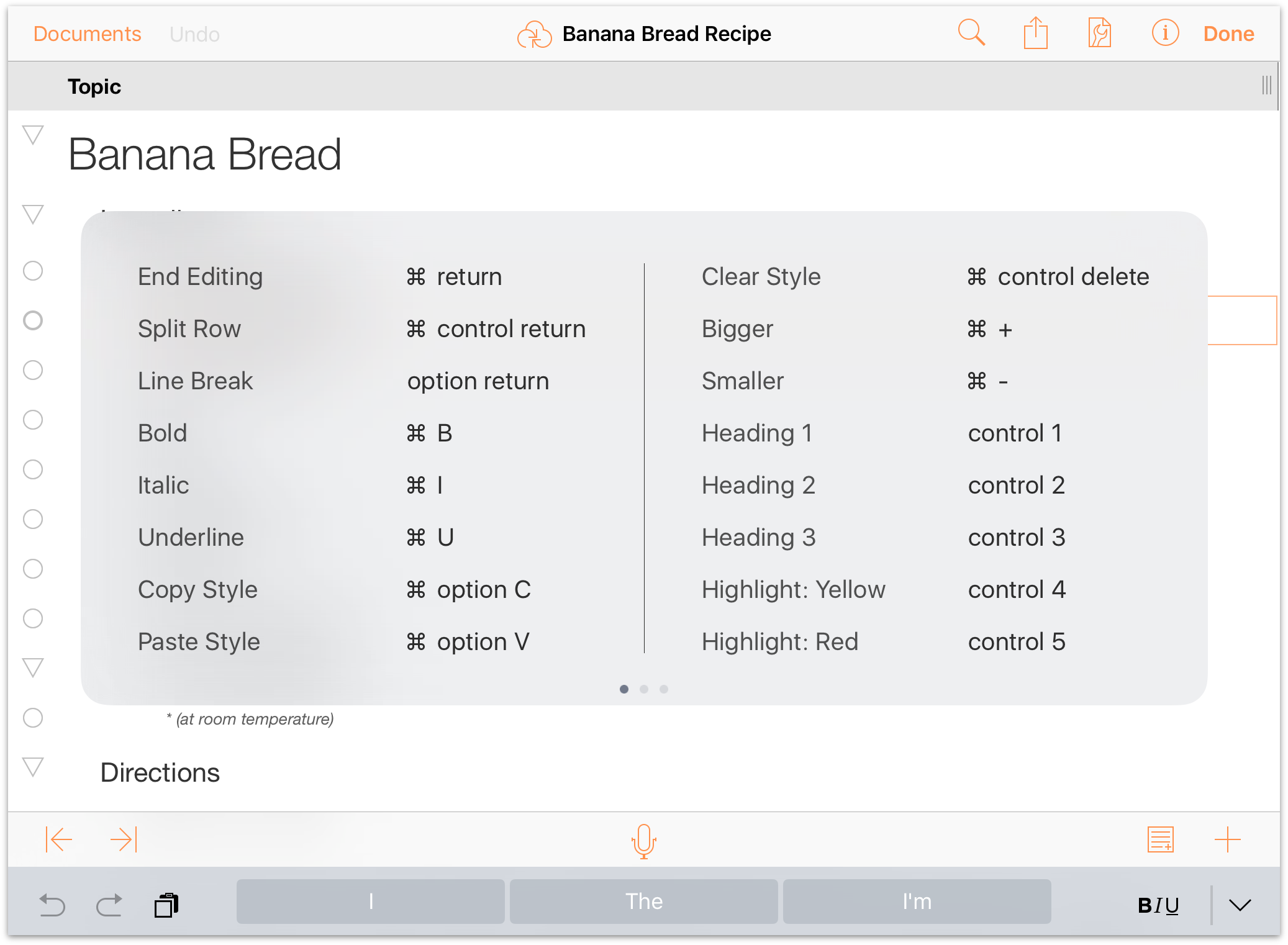
Similarly, if you are editing a row (such as entering or deleting text, adding an image, and so on), holding down the Command key (⌘) displays another set of keyboard shortcuts you can use.
Editing
| Command | Keyboard Shortcut |
| Cut | Command-X |
| Copy | Command-C |
| Paste | Command-V |
| Copy Style | Option-Command-C |
| Paste Style | Option-Command-V |
Controlling How Paste Works
In OmniOutliner’s Settings, you’ll find an option for pasting text. When viewing the contents of a folder or when you’re on OmniOutliner’s home screen, tap the gear menu in the upper-right corner and then tap Settings.
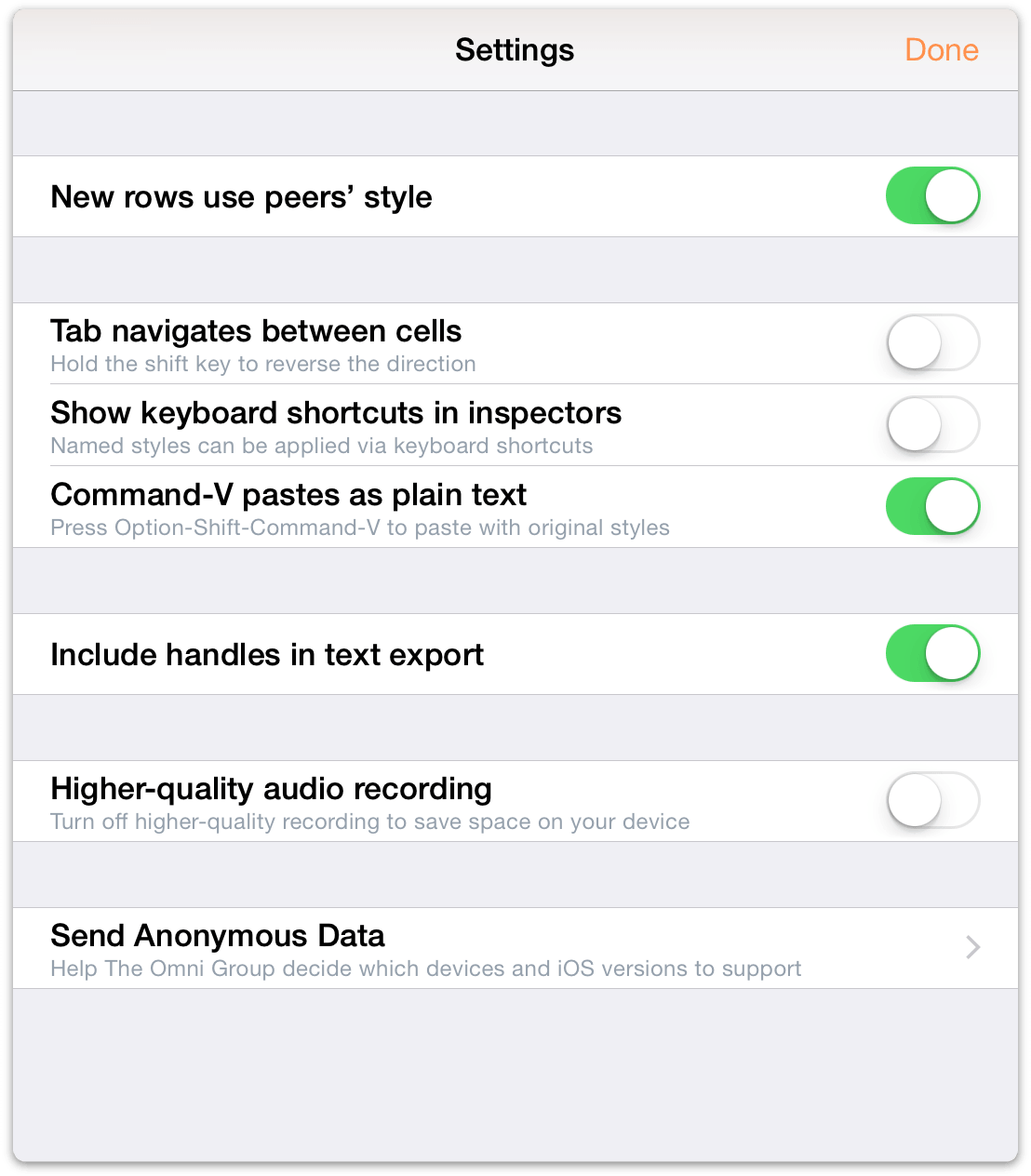
When the switch is on, Command-V pastes the contents of the clipboard as plain text. When the switch is off, Command-V pastes the contents of the clipboard with original styles. One little trick to keep in mind, however, is that Option-Shift-Command-V always pastes using the opposite method of Command-V (i.e., styled text when the switch is on, and plain text when the switch is off).
It’s worth noting, too, that this setting does not affect the Paste and Paste Plain options found in the contextual menu when you tap in a row or cell. For more details on how those options work, see Creating a New OmniOutliner Document.
Styles
| Command | Keyboard Shortcut |
| Bold | Command-B |
| Italic | Command-I |
| Underline | Command-U |
| Clear custom style | Control-Command-Delete |
| Increase font size | Command-+ |
| Decrease font size | Command-– |
| Toggle first named style | Control-1 |
| Toggle second named style | Control-2 |
| Toggle third named style | Control-3 |
| Toggle forth named style | Control-4 |
| Toggle fifth named style | Control-5 |
| Toggle sixth named style | Control-6 |
| Toggle seventh named style | Control-7 |
| Toggle eighth named style | Control-8 |
| Toggle ninth named style | Control-9 |
| Toggle tenth named style | Control-0 |
| Split row at cursor | Control-Return |
| Insert line break | Option-Return |
| Toggle editing current row | Command-Return |
Reorganize
| Command | Keyboard Shortcut |
| Move row up | Control-Command-↑ |
| Move row down | Control-Command-↓ |
| Move row left | Control-Command-← |
| Move row right | Control-Command-→ |
| Split Row | Control-Command-Return |
| Indent row | Command-] or Tab |
| Outdent row | Command-[ or Shift-Tab |
| Add row | Return |
| Add row above | Shift-Return |
| Add child | Shift-Command-] |
| Add aunt | Shift-Command-[ |
| Group | Option-Command-G |
| Ungroup | Option-Command-U |
| Duplicate | Command-D |
| Toggle editing note | Command-' |
| Select all | Command-A |
| Deselect all | Shift-Command-A |
| Back delete | Delete |
| Forward delete | fn-Delete |
| Move to next cell | Tab |
| The Tab key can be used to either indent/outdent, or to navigate between cells. | |
View
| Command | Keyboard Shortcut |
| Expand all rows | Control-Command-9 |
| Collapse all rows | Control-Command-0 |
| Expand selected rows | Command-9 |
| Collapse selected rows | Command-0 |
| Expand selected rows completely | Option-Command-9 |
| Collapse selected rows completely | Option-Command-0 |
| Toggle Note visibility for all rows | Control-Command-' |
| Zoom in on text (makes the text bigger onscreen, but doesn’t change the font size in the document) | Shift-Command-> |
| Zoom out on text (makes the text smaller onscreen, but doesn’t change the font size in the document) | Shift-Command-< |
| The following commands only work when you already have a row selected: | |
| Scroll to First Row | Command-↑ |
| Scroll to Last Row | Command-↓ |
| Move selected row up | u |
| Move selected row down | d |
| Move left | l |
| Move right | r |
| Edit row | e |
| Toggle status | Spacebar |
| Group | Option-Command-G |
| Ungroup | Option-Command-U |
| Select row above | ↑ |
| Select row below | ↓ |
| Expand selected row(s) | → |
| Collapse selected row(s) | ← |
| Add row above to selection | Shift-↑ |
| Add row below to selection | Shift-↓ |
| Toggle Note visibility for selected row(s) | Option-Command-' |
Find
| Command | Keyboard Shortcut |
| Find | Command-F |
| Select previous match | ↑ |
| Select next match | ↓ |
| Select all matches | Command-A |
| Only works when in row selection mode. | |