When updating from an earlier version of OmniFocus, you may be prompted to migrate your database to a format capable of supporting new features in the latest version of the app. This article covers the database migration required to sync with OmniFocus 3, as well as other database migrations that may not be immediately required.
Upgrading to OmniFocus 3 from previous versions
OmniFocus 3 will perform a compatibility check the first time it syncs with an existing OmniFocus database. In order to offer new features, faster performance, and stronger security, OmniFocus 3 uses an upgraded database format, and other clients that sync with OmniFocus 3 must be able to read this database format. This newer database format is backwards compatible with OmniFocus 2.12.2 for Mac and OmniFocus 2.22.3 for iOS (requires macOS 10.12 / iOS 11.3 or newer, respectively).
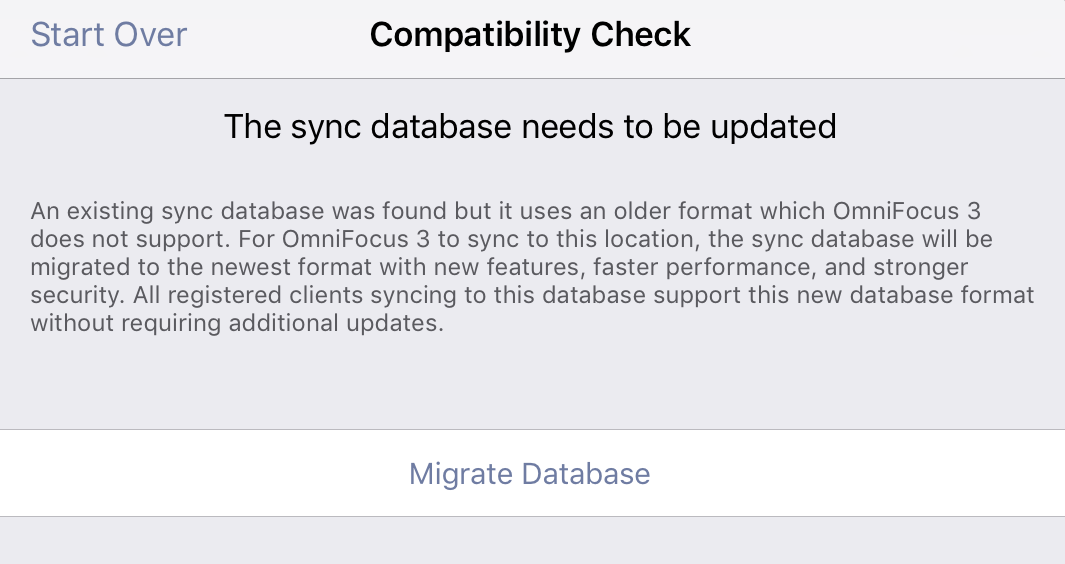
If all versions of OmniFocus syncing with your database are up to date, but your database has not yet been migrated to the newest format, then OmniFocus 3 will directly prompt you to migrate your database after it attempts to sync for the first time. Simply tap Migrate Database to begin syncing with OmniFocus 3:
If OmniFocus 3 detects older, incompatible versions of OmniFocus still registered as active sync clients, it will present an alert that lists each incompatible client connected to your database, and show whether that copy of the app can potentially be updated to become compatible or if it must be disconnected:
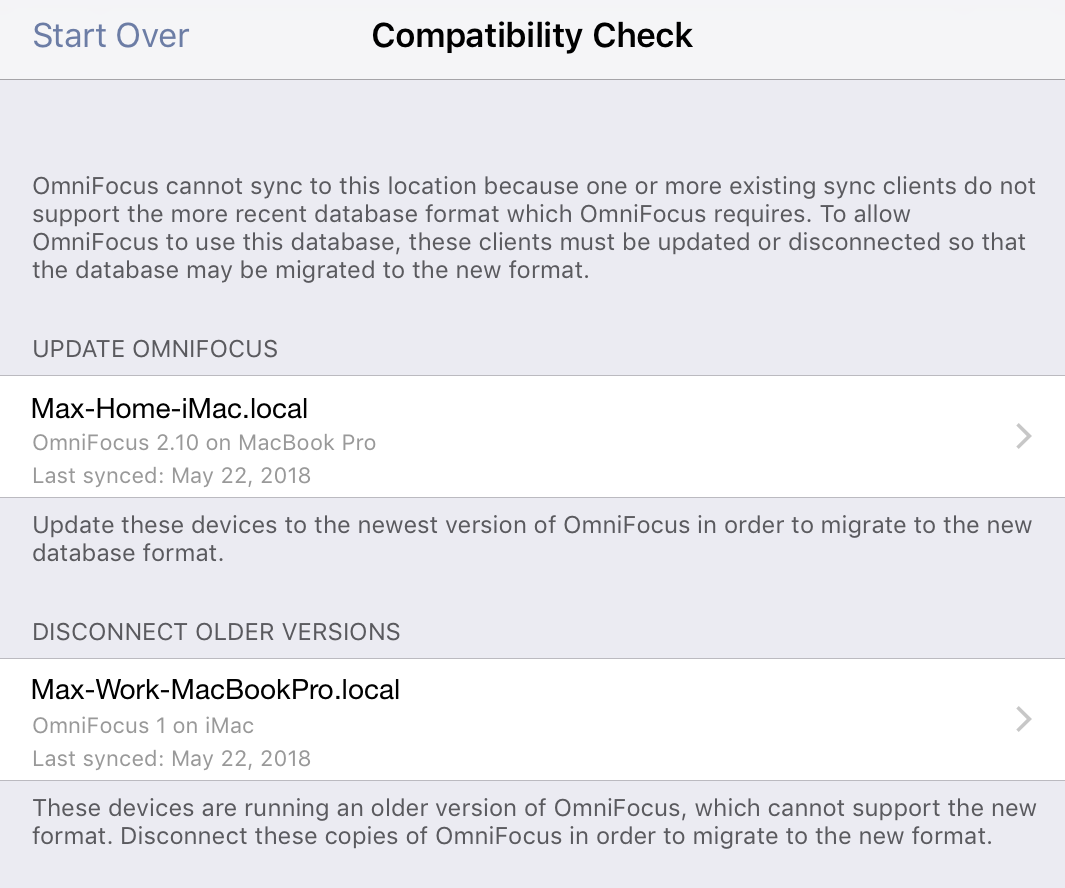
Older versions of OmniFocus 2 on macOS 10.12 / iOS 11.3 or newer can be updated in order to support the newer database format, if you’d like to continue syncing with those existing of the app on your devices. However, for older versions of OmniFocus that can’t be updated or that you simply aren’t using anymore, you can choose to disconnect the client. Simply, tap on an incompatible client that is listed, then tap the Disconnect button:
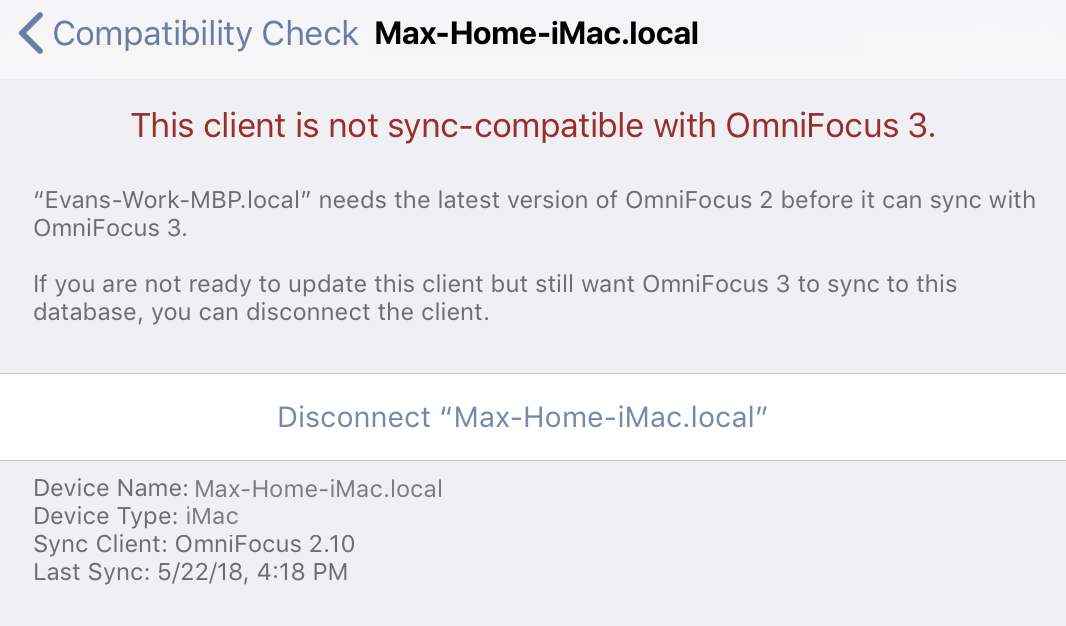
Once OmniFocus 3 detects that all other versions of OmniFocus you’ve been syncing with have either been updated to a compatible version or disconnected you will be given the option to Migrate Database.
Other database migrations
Some OmniFocus updates may prompt you to migrate your database in order to support the introduction of new features or enhancements – like the ability to directly mark actions as Dropped added in OmniFocus 3.4. Unlike the database migration that is required to sync with OmniFocus 3, these database migrations can be deferred if you want to continue syncing with earlier versions of the app.
OmniFocus observes which other copies of the app you are actively syncing with, and will only prompt you to migrate to a newer format if all active sync clients are updated to a compatible version.In most cases, you’ll simply want to choose Migrate Database, and voilà! OmniFocus syncs your database in the new format to all of your devices.
However, if for any reason you don’t want to peform the migration right now — maybe you have an older version of the app you infrequently still need to sync with — you can choose Later on Mac or tap Done on iOS to dismiss the migration prompt. You can then always manually choose when you want to migrate by choosing File > Migrate Databse in the menu bar on Mac or selecting Migrate Database under the Database seciton in Settings on iOS.
Disconnecting older sync clients
Here is how to manually find the list of registered sync clients and remove one, if needed:
-
On Mac — Go to Settings > Sync > Show Sync Details > Devices. Select an entry and click Unregister.
-
On iOS — Go to Settings > Sync > Registered Devices. Tap Edit, then tap ⛔️ and Delete on entry. You’ll then get a confirmation prompt where you’ll tap Unregister.
Reverting to a previous databse format
If you want to revert back to a previous databse format for some reason — e.g. retaining sync compatibility with an older version of the app — you have two possible options:
- Restore to backup from before you migrated
- Email our Support team, and we can assist with using a tool to downgrade your database format
What happens if I decline the prompt, and don’t migrate to a newer database format?
If you’re still syncing with an older version of OmniFocus on any of your devices, and can’t install the latest OS to update to the latest version, don’t worry! You can decline the migration prompt to continue syncing the latest versions with older clients. Doing so means you won’t be able to take advantage of features that rely on the new database format (such as database encryption, or optimized attachment storage), but the rest of OmniFocus’s features that you’re already used to will still be available to you. Eventually, you may be required to migrate your database in order to sync with brand new versions of OmniFocus (like OmniFocus 3 for iOS).
The reason why OmniFocus asks if you want to migrate – instead of doing so automatically — is because we don’t want to create a situation where you have to stop using an older client on any older devices that can’t run the latest versions of macOS or iOS. We’ve designed our OmniFocus updates so that users with different OS requirements can decline migration prompts to a new database format, and maintain compatibility with older devices.
Installing subsequent updates of OmniFocus on some devices but not others won’t affect the database format, or otherwise break sync with your older clients, for as long as you continue using the older sync clients. If you go an extended period of time without syncing an older client, OmniFocus might interpret that as a sign that you’re no longer using that device, and may offer to migrate again. As long as you plan to continue using older clients, you can decline that offer. This process is designed to never let the migration happen on an existing database, unless you choose to allow it.